Support
Here you can find answers to frequently asked questions
To invite a user, navigate to "Our Organization" located in the menu under your name. There you click on "Invite user". Then fill in the name of the person (first and last name) and then the email address. An email with login details will be sent to the person.
Navigate to My Profile located in the menu under your name. Then fill in the Personal number box and click Save. Once the social security number is added, the user can log in with Mobile BankID.
When creating an e-signature, you need to do the following steps:
- Fill in the Name box.
- Add the document to be signed (it must be a PDF).
- Add the signing parties.
Always check that the e-mail address and personal identity number of the signing parties are correct.
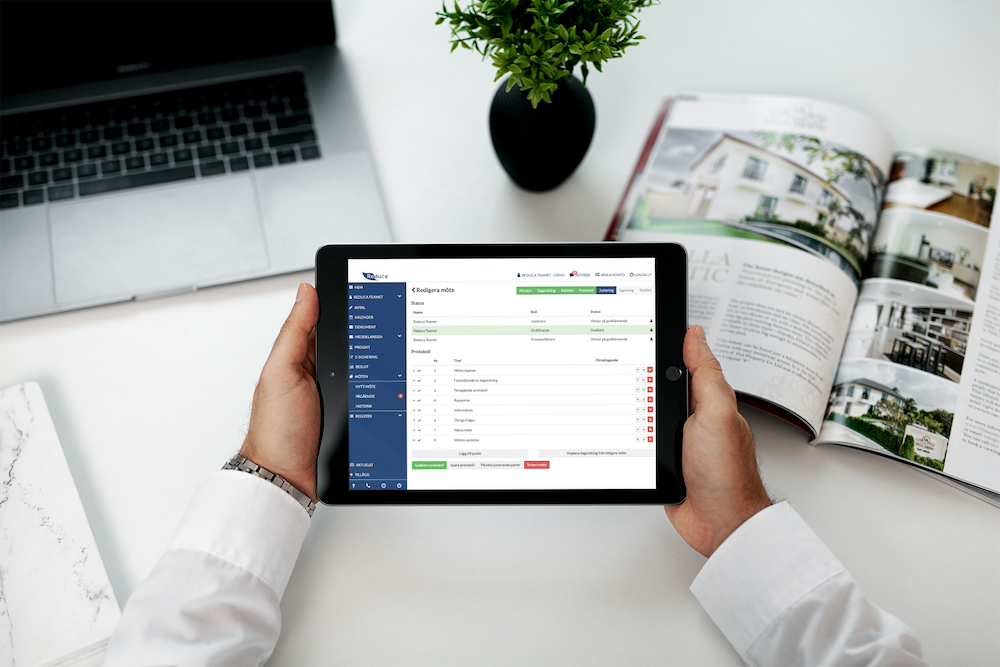
In the Adjustment step, only those users with the roles of Adjuster and Chair can submit amendments. They do this by filling in the New amendment box under each item in the minutes. Once they have gone through all the items, they should press Send amendment or No amendment.
From the Adjustment step onwards, the meeting is locked for the roles you selected in the Minutes step. The minute-taker and Chair can interrupt the adjustment if something has gone wrong in the previous steps.